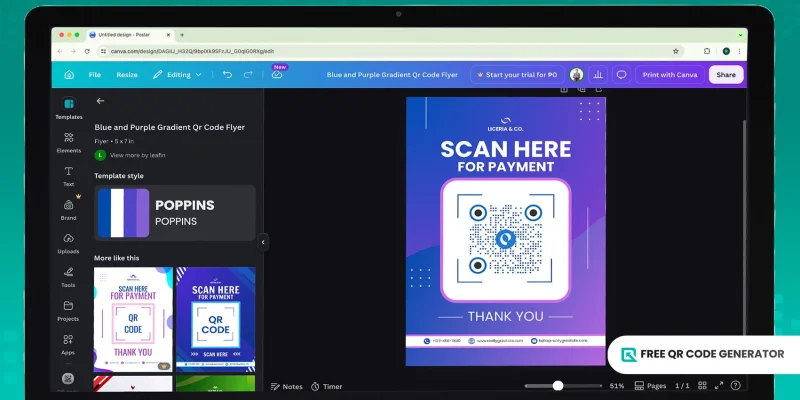
You can directly use QR codes in Canva projects, and it is completely free.
For sharper-looking branded QR codes with your logos and colors, a free QR code generator online extends what Canva’s native tool offers.
Read on to learn how to create better-looking QR codes for your Canva projects and marketing assets.
Table of Contents
- How Canva’s QR code works
- How to create a QR code in Canva
- How to use QR codes in Canva for free
- Does Canva support dynamic QR codes?
- How to create a Canva QR code with logo for free
- Tips for designing reliable QR codes
- Bring custom QR codes into your Canva design
- Frequently asked questions about Canva QR codes
How Canva’s QR code works
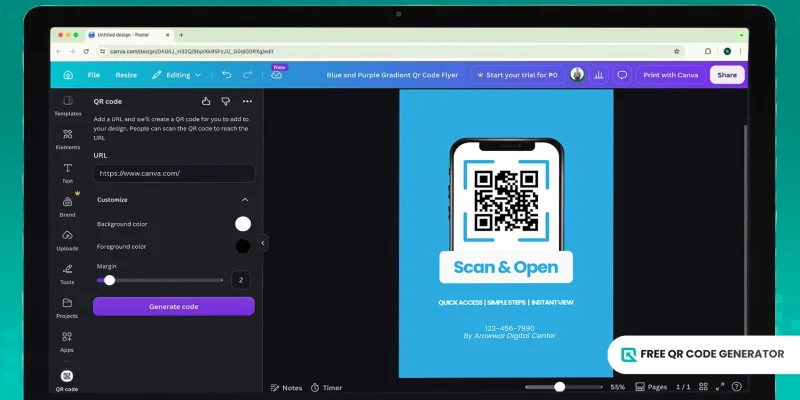
A Canva QR code is a static QR code generated through the graphic design platform.
The QR code app is part of the software, so the method on how to create a QR code in Canva is easy to do. All you need to do is input a URL or link, personalize the design, and generate the code to integrate it into your project.
Since a static QR code cannot be edited anymore once printed, test your code before downloading or sharing the project with others.
How to create a QR code in Canva
- Log in to your Canva account.
- Open a saved design or start a new one from scratch.
- Go to the “Apps” tab. Search “QR code” and select the first app in the search results.
- Paste the link or page URL you want the QR code to lead to.
- Customize your QR code. Canva’s built-in app gives you three options: foreground color, background color, and margin width.
- Click “Generate code”, and the QR code appears in the center of your design.
- Resize the QR code or slot it into a frame element.
- Test scan with a smartphone or Canva QR code scanner app.
- Click “Share”, then “Download”, and select PNG, JPG, PDF, or SVG.
How to use QR codes in Canva for free
Business cards
Place the QR code on the back of a business card or right next to your contact details. People can scan it to save your portfolio, or visit your LinkedIn page.
A 0.8-inch square fits cleanly on a standard 3.5-by-2-inch card without crowding the layout.
Product packaging
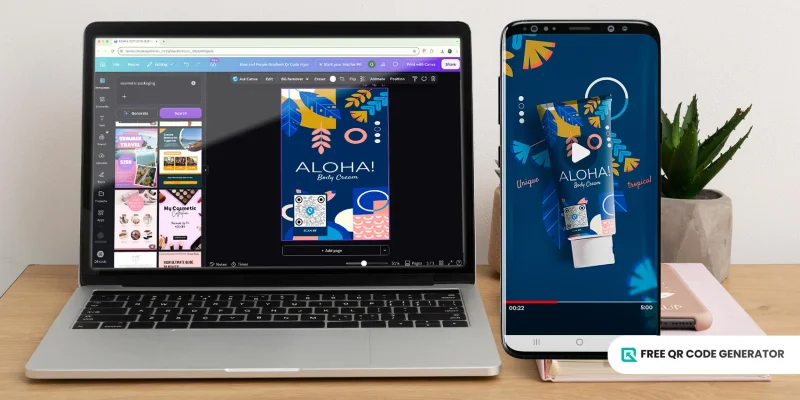
A product packaging QR code opens access to instruction manuals, warranty registration, and unboxing videos without printing them on the box itself.
A 2024 consumer survey by QR TIGER found 79% of shoppers prefer products with scannable codes linked to extra information.
Position the code on a flat panel with white space around the pattern, and avoid curved surfaces that warp the scan.
Event flyers and posters

Place the QR code in the lower-right corner of your event flyers or posters with a clear call to action, such as “Scan to RSVP”.
The poster format gives you room to enlarge it to 2 to 4 inches, so attendees can scan it from at least 5 to 12 feet away.
Restaurant menus and table cards
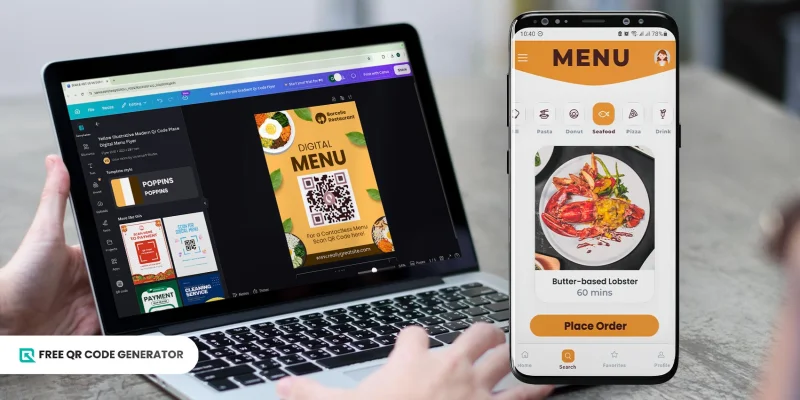
QR code menus became standard in full-service dining during the pandemic and stuck.
According to the National Restaurant Association’s 2021 State of the Restaurant Industry report, more than half of casual, fine, and family dining operators added digital menus during that period (Restaurant Dive). Adoption has held steady since.
Place the QR code on a table tent, a menu insert, or a sticker on the table itself. Pair it with a short instruction, such as “Scan for menu.”
Other strong fits:
- Social media graphics tied to a campaign or limited-time offer
- Trade show banners and conference handouts
- Real estate signage and open house flyers
- Educational handouts and classroom resources
Does Canva support dynamic QR codes?
No. Canva’s built-in QR code app only generates static QR codes. Once they are generated, the destination links are locked. To change the URLs, you have to generate new ones and reprint them.
If you’re using the QR codes for projects such as marketing, we recommend using dynamic QR codes instead. These QR code links to a redirect URL. This lets you update the content at any time and track its performance.
Since Canva does not generate dynamic codes natively, you need a third-party QR code generator. Create the dynamic code there, save it as PNG or SVG, then upload the image into your Canva design.
How to create a Canva QR code with logo for free
A dedicated QR generator gives you full control over your designs and data, plus solutions that go beyond basic URL. Follow the steps below to create a branded QR code for Canva:
1. Go to the Free QR Code Generator website.
2. Choose a QR code type, then fill in the details.
3. Choose between a Static or Dynamic QR code based on your use case.
4. Click “Generate QR Code.”
5. Customize the QR code with your brand logo and colors. Adjust the eye shape and pattern to enhance its visibility.
6. Run a quick scan test to confirm the QR code works. Then, save it as a PNG or SVG.
7. Drop the file into your Canva design and place it wherever it fits best.
When you create an account, you get three free dynamic QR codes, each capped at 500 scans.
Tips for designing reliable QR codes
Keep these best practices in mind whenever you design your QR codes:
- Keep contrast strong: Use a dark foreground on a light background. Inverted colors confuse some older scanners and lower-end phone cameras.
- Respect the quiet zone: The margin around the QR code is part of the design. Crop too close and scanners won’t be able to recognize the data modules.
- Add a short call to action: Pair the QR code with a prompt like “Scan to RSVP” or “Scan to order”. People are more likely to scan when they know where it leads.
- Test on multiple devices: iPhone and Android. Different cameras read QR codes at different speeds. Knowing this allows you to improve the QR code’s design.
- Skip busy backgrounds: A QR code placed over a photo or pattern struggles to scan. Set yours on a clean block of color or a white card behind the design.
Bring custom QR codes into your Canva design
QR codes make your Canva projects more interactive beyond the platform. A flyer points readers to a landing page, or a product label opens a warranty registration page.
For a cleaner customization, more design options, or logo integration, Free QR Code Generator handles what Canva's native tool leaves out.
Generate the code, drop the file into your Canva design, and you're done. Try it for free on your projects!
Frequently asked questions about Canva QR codes
Can you personalize Canva QR codes?
Yes, but with limits. Canva gives you three options to customize QR codes: foreground color, background color, and margin width.
For logo embedding, custom eye shapes, gradient colors, or custom frames, create your QR code through a dedicated QR code generator first, then upload the file into your Canva design.
What are the limitations of Canva QR codes?
Canva QR codes do not allow destination updates after downloading or printing, support only URL QR codes, offer limited customization, and provide no scan analytics, including time, location, or device data.
Do Canva QR codes expire?
No. Canva QR codes are static, so the destination link is set into the pattern at creation and never expires. The QR code stays scannable as long as the destination URL stays live. If the page is no longer active, the code stops working as well.
What should I avoid when creating QR codes?
Skip low-contrast color combinations, cropped quiet zones, and busy background images that interfere with the scan. Avoid stretching or warping the code, since uneven proportions break the pattern.