Quick Response (QR) codes are 2D barcodes that can hold more data than the typical barcodes you see on merchandise.
They can lead users to specific information, such as websites, landing pages, or files. For this reason, QR codes continue to attract individuals and businesses.
In this guide, we break down the steps on how to create a QR code, the best free QR code generator tools you can use, and tips to customize your code effectively.
Table of Contents
- How can I create a QR code for free?
- Method 1: Using Free QR Code Generator
- How to generate QR codes for specific solutions via Free QR Code Generator
- Method 2: Using Canva
- Method 3: Using Google Chrome
- How to properly customize your QR code (do’s and don’ts)
- Start your own QR code strategy with Free QR Code Generator
- FAQ
How can I create a QR code for free?
You can create a QR code for free using online generators or built-in browser tools. Copy the link or text you want to share and paste it into the tool. Then, generate and download the code. Optionally, you can customize the QR code's appearance.
Dedicated platforms, such as the Free QR Code Generator and Canva, offer features that let you personalize the type and look of the QR code.
Google Chrome also has a built-in QR code maker, useful for quickly generating QR codes that don’t require unique branding elements.
Method 1: Using Free QR Code Generator
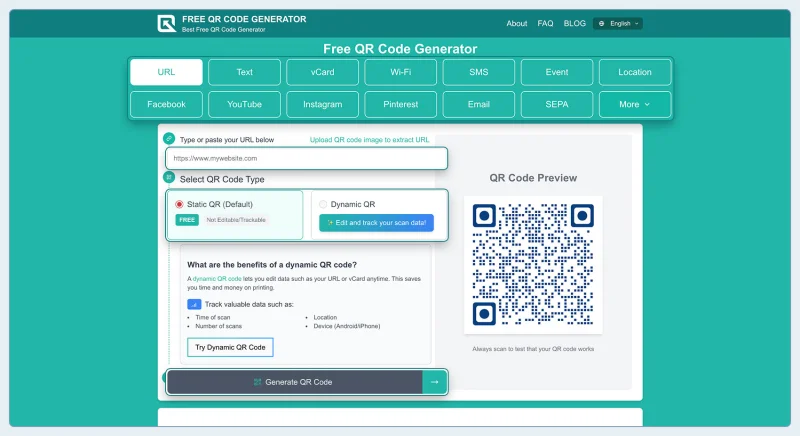
Free QR Code Generator allows users to create static and dynamic QR codes without requiring account registration. Users can also customize colors, patterns, and logos before downloading their QR codes.
Steps to generate a free QR code
- Go to a free QR code generator website.
- Choose a QR code solution from the available options.
- Add the required data, such as a link, a file, or text.
- Choose a QR code type: Static or Dynamic.
- Click the ‘Generate’ button.
- Proceed to designing or customizing your QR code.
- Test your QR code to ensure it's scanable.
Note: Static QR codes are permanent; you cannot edit their content after printing. Dynamic QR codes let you update them even after deployment and track their performance.
How to generate QR codes for specific solutions via Free QR Code Generator
How to create a QR code for a link?
- Choose the URL QR code solution.
- Paste the link you want to convert to a QR code.
- Select Static or dynamic.
- Generate and personalize the QR code.
- Download.
How to create a QR code for a Google Form?
- Click the ‘More’ button, then select the Google Form.
- Paste your Google Form link and generate.
- Customize and download the QR code.
How to create a QR code for a PDF?
- Hit the ‘More’ button, then choose File.
- Upload the PDF file.
- Generate, customize, and download the code.
How to make a QR code for business card?
- Click the vCard QR code solution.
- Fill out the form with your personal information.
- Generate, customize, and download the code.
How to create a QR code for Facebook page?
- Select the Facebook QR code solution.
- Paste your Facebook page’s link.
- Select Static or dynamic.
- Generate and personalize the QR code.
- Download.
How to make a QR code for an app?
- Click the ‘More’ button.
- Select the App QR code solution.
- Generate, customize, and download the code.
Method 2: Using Canva
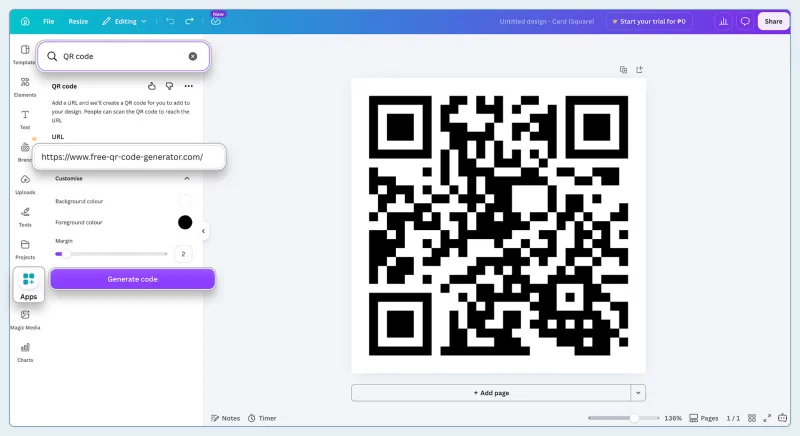
This method works if you’re already using Canva to design and want to add a QR code directly to your project.
Here’s a step-by-step guide on how to create a QR code on Canva:
- Create a new design or use an existing project.
- Find ‘Apps’ on the left side panel.
- Search for ‘QR code’ to find the native QR generator of Canva.
- Paste the URL or link you wish to direct the
- Customize your code and click ‘Generate.’
Note: Canva QR codes are static. Dynamic QR codes are available through supported third-party generators, such as QR TIGER.
Method 3: Using Google Chrome
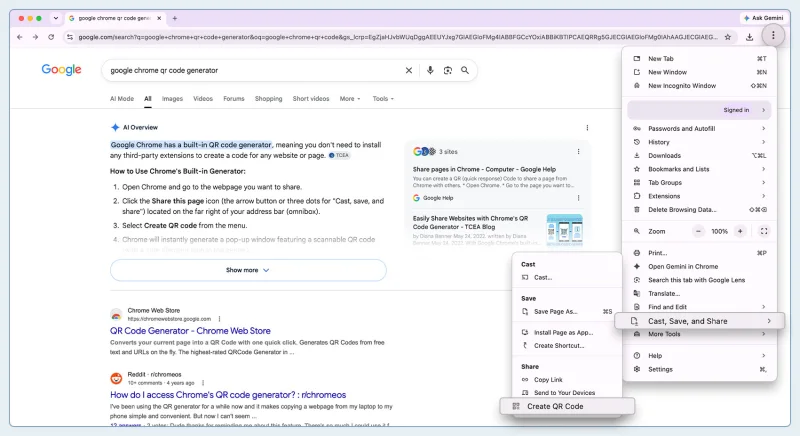
Google Chrome’s in-browser tool lets you convert any webpage link into a static QR code. It is 100% free and doesn’t require you to download any extensions.
Follow these steps:
- Visit the website you wish to convert into a QR code.
- Click the three dots in the top-right corner of the browser.
- Select Cast, Save, and Share.
- Navigate down to ‘Create QR code.’
- Copy or download the QR code.
Note: This feature is limited to webpage links only. You also can’t personalize the design and colors or change the logo (dinosaur icon).
How to properly customize your QR code (do’s and don’ts)
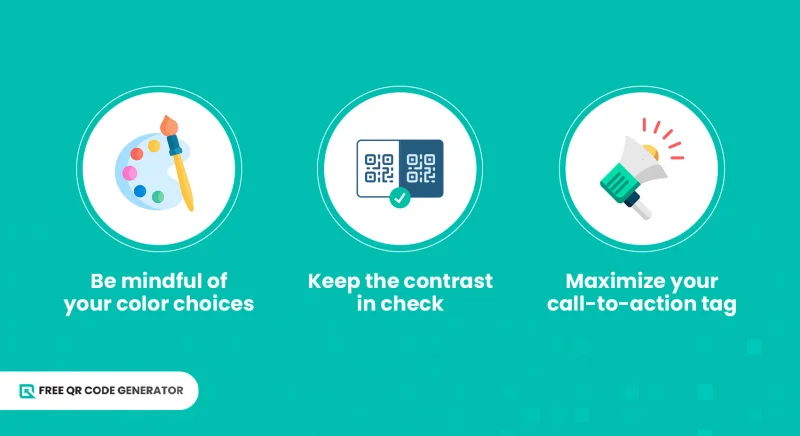
Customization is an integral part when you create QR codes, and although having the option to personalize your codes is freeing, there are considerations to ensure they function properly.
Here are some important points to remember:
Be mindful of your color choices
Colors play a very important role in ensuring your QR code works when people scan it.
When choosing color combinations, avoid pastel hues such as light pink, baby blue, or lavender. They’re too light for QR code scanners to detect. Go for solid, primary colors like red, blue, black, or green.
In case your brand’s color scheme is on the pastel side, we recommend the following approach:
- Use a darker shade of your pastel color for the QR code pattern.
- Use a very light background, preferably white or a near-white pastel.
- Using pastel colors in the frame, call-to-action text, landing page design, logo embedded in the QR code, or marketing materials.
These let you preserve your brand identity while ensuring reliable scanning. The next item provides more details about QR code color contrast.
Keep the contrast in check
Contrast refers to the difference between your foreground and background. Maintaining the right contrast will make your pattern more visible.
Imagine using a pink background and the same pink color for the pattern. It will take scanners longer to identify the crucial points of your pattern. Delays like this can frustrate people, leading them to skip scanning your QR codes.
High contrast color combinations include white background + red pattern, white background + black pattern, and light blue background + dark blue pattern.
Rule of Thumb: The QR code’s patterns must be 70% darker than the background, according to Delivr.
Maximize your call-to-action tag
A call-to-action (CTA) helps catch the attention of scanners; it's meant to help them understand what the QR code is for or what action to take. Maximizing the potential of CTAs lets you promote your QR code without having to do the hard part.
Make sure that the CTA reflects your code’s content, whether it’s for promotion (Scan to Win), education (Learn More Here), or networking (Scan to Connect).
Keep it short and compelling.
Start your own QR code strategy with Free QR Code Generator
Now that you know how to create a QR code, you will gain more opportunities to explore various applications of QR codes that are useful for personal, professional, or business use.
You can always start with a safe, trusted generator like Free QR Code Generator. Just create a QR code—no sign-up needed.
FAQ
How to create a QR code for wedding RSVP?
To create a QR code for a wedding RSVP, use the HTML or landing page QR code solution from Free QR Code Generator. Design your desired RSVP page with photos, videos, links, texts, and audio. After creating the landing page, generate a custom QR code for it.