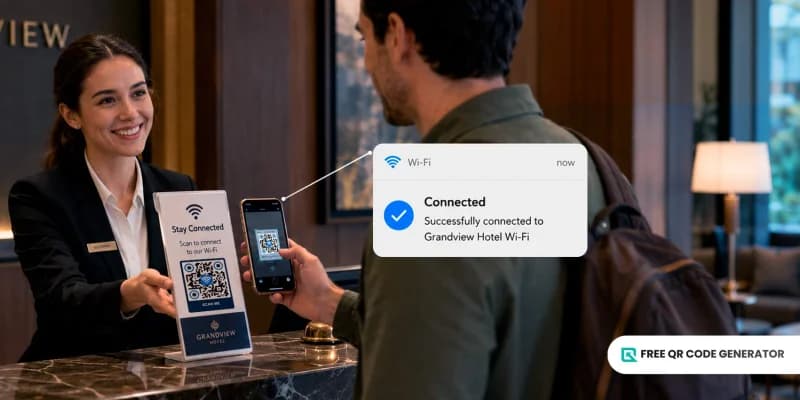
The moment a guest enters a cafe, hotel, or restaurant, one of the first questions they will ask is, “What’s the Wi-Fi name and password?”
Providing a free Wi-Fi QR code for guest access lets them instantly connect to the wireless network with a simple scan, without entering credentials.
Learn how it works, how to make one using a safe, free QR code generator for Wi-Fi, what benefits it offers to your business, and some best practices to follow to make it readily available for guests.
Table of Contents
What is a free Wi-Fi QR code?
A Wi-Fi QR code is a static type of QR code that stores wireless network information, such as the network name, SSID, password, and encryption or security type (i.e., WPA or WEP).
When users scan the QR code with their smartphone camera, their device will automatically connect to the Wi-Fi network, a faster, more convenient, and secure way to connect without errors.
You can create a free Wi-Fi QR code for your business in the smartphone's built-in settings, but we recommend using a secure free QR code generator with logo integration instead.
Adding a logo to your QR code gives guests more confidence that it is legitimate and safe to scan.
How to create a free QR code for Wi-Fi
1. Go to the Free QR Code Generator online. This is a free-to-use platform.
2. Select its Wi-Fi QR code solution.
3. Enter the required information: Network security type, SSID (found at the bottom of the router), and password.
4. Click “Generate QR code”.
5. Customize your QR code. Add your brand’s logo and a call to action like “Scan to connect.”
6. Test your QR code to make sure it works correctly.
7. Download your QR code with your preferred format, whether QR code PNG or SVG, and place it in an area where guests can easily see and scan it.
🚀 Dynamic QR codes are a type of QR code that you can update and track after generating and printing. Create free dynamic QR codes for business and access these features.
Why use a free Wi-Fi QR code for guest access?
Reliable internet access has become a necessity for any business that regularly handles guests. But it can be a hassle for staff to repeatedly write down or share network names and passwords.
A free Wi-Fi QR code for guest access can improve the business experience in the following ways:
Effortless connectivity
Scanning a QR code can give guests fast internet access while letting staff spend less time typing passwords and handling internet-related requests.
💡Did you know? QR TIGER’s 2026 QR Code Industry Report revealed that around 55% of users who scan QR codes, like for Wi-Fi, regularly do so to save time.
Lower operating cost
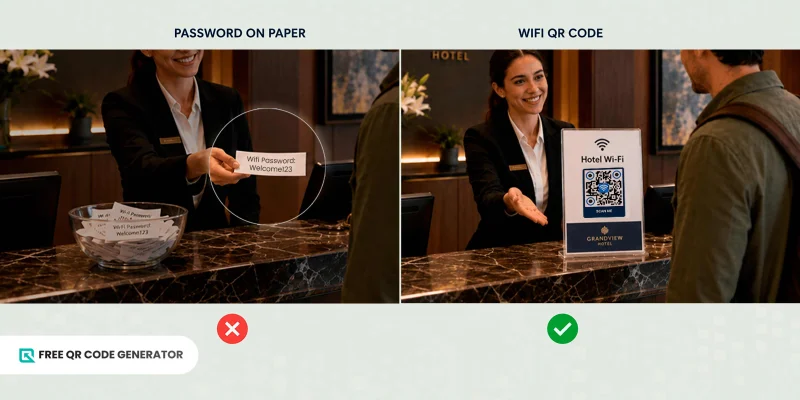
You can create Wi-Fi network QR codes for your business at no cost using a free QR code generator.
Moreover, you can print the codes once rather than repeatedly producing materials that display or distribute the network password, thereby reducing printing expenses.
Stronger security
Wi-Fi QR codes don’t replace strong network security practices (like strong passwords or guest networks), but they reduce human exposure points that often lead to accidental leaks.
You can place the QR code in controlled locations (e.g., inside a menu or at a reception desk) rather than display it openly.
The staff also doesn’t need to say or type the password anymore, reducing the risk of it being overheard, copied, or shared casually.
Professional branding
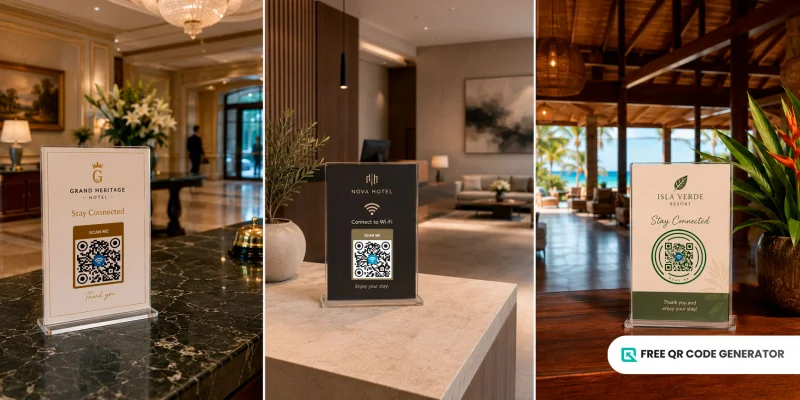
Most free online QR code generators for Wi-Fi, like Free QR Code Generator, let businesses like yours customize QR codes with branded logos, colors, and frames.
This helps maintain a consistent brand identity while providing a more polished, professional presentation of your QR code.
💡Did you know? Users rely on visual elements to ensure a QR code is safe to scan. The best way to boost user trust is to add elements such as verified branding (42%) and official logos (38%). Source: QR TIGER
Greater accessibility
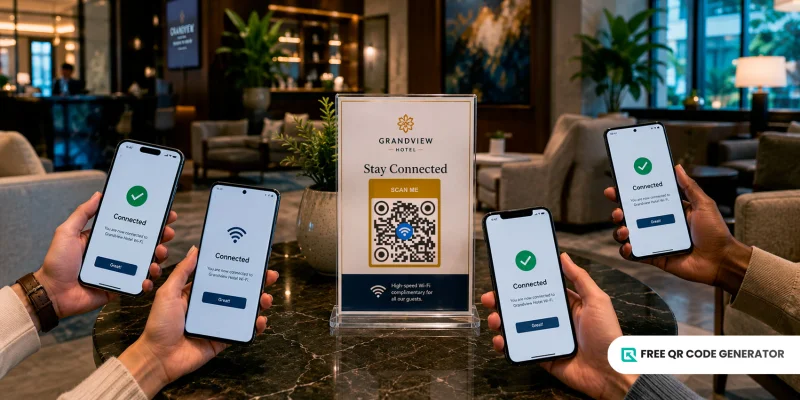
A majority of modern Android and iOS devices have built-in Wi-Fi QR code scanners in their cameras, making QR codes widely accessible and easy for most users to connect.
Tips when using Wi-Fi QR codes for guest access
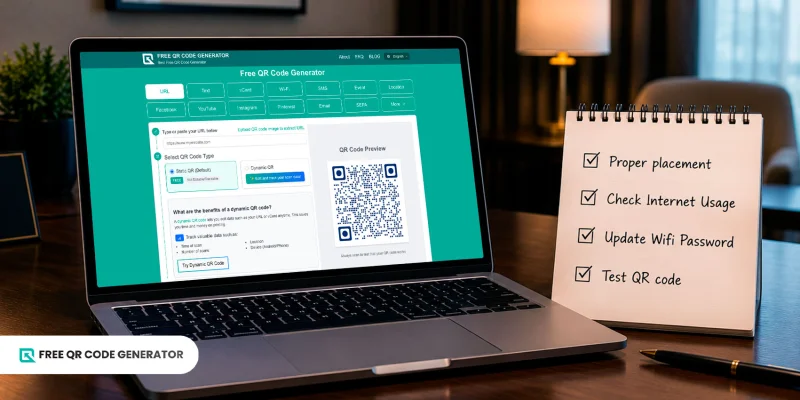
Well-designed QR codes for Wi-Fi improve convenience and potentially support repeat business visits by reducing friction in connecting to a network. Keep these best practices in mind to achieve this:
- Placement is key:
Reception desks, hotel rooms, tables, and waiting areas are all ideal places to place a free Wi-Fi QR code for guest access. Ensure they are easy to point and scan, and include a call to action so guests know that it’s for the Wi-Fi.
- Ensure data security:
Create a dedicated guest network before generating a Wi-Fi QR code for it. That way, any sensitive business data is fully protected while still allowing guests to use the internet.
- Monitor data usage:
Be sure to keep tabs on the number of devices using the internet connection, as the more devices that are connected, the slower the internet speed can become. Ensuring your internet is both fast and reliable can significantly improve guest satisfaction.
- Update the QR code as needed:
If you plan to change the password for your wireless network, remove all the free QR codes for Wi-Fi connection and replace them immediately so guests can connect to and/or reconnect to the network.
- Test the QR code:
Before and after sharing Wi-Fi QR codes for guest access, scan them with multiple devices under different lighting conditions to confirm they can connect quickly and correctly.
Simplify guest internet access with free Wi-Fi QR codes
A free Wi-Fi QR code for guest access helps improve the business experience more than you think.
When guests or customers can quickly connect to the internet, they can access services online, browse menus or product information, complete digital payments, and stay engaged.
Implementing a free Wi-Fi QR code is one easy step toward delivering the modern guest experience customers expect.
You can use a free QR code generator today to create practical codes that help operations run more smoothly and improve overall customer satisfaction.
Frequently Asked Questions
Is it possible to view a WiFi password?
You can view a Wi-Fi password only on a device that has already connected to the network. Go to Wi-Fi Settings > select the Wi-Fi network you’re connected to > tap Share or Copy Password.
How do I find a QR code for WiFi on my phone?
For Android 10 and higher: Go to the phone settings > Search for the specific Wi-Fi network and then tap the icon next to its name. If it doesn’t appear, select the share option, then enter your PIN to reveal the QR code.
For iOS 18 and higher: Go to your phone settings > select Wi-Fi > tap the name of the Wi-Fi network you plan to share > select “show network QR code” to display the Wi-fi QR code.